The client call is over, and your next meeting starts in ten minutes. Just enough time to jot down the feedback, answer a follow-up question and get back to the design. Time tracking? That can wait.
In agency life, it’s often the little bits of admin that get lost between project work and team catch-ups. Have I logged the time for that last meeting? Have any new tasks come in? And where’s that one prompt I use three times a week?
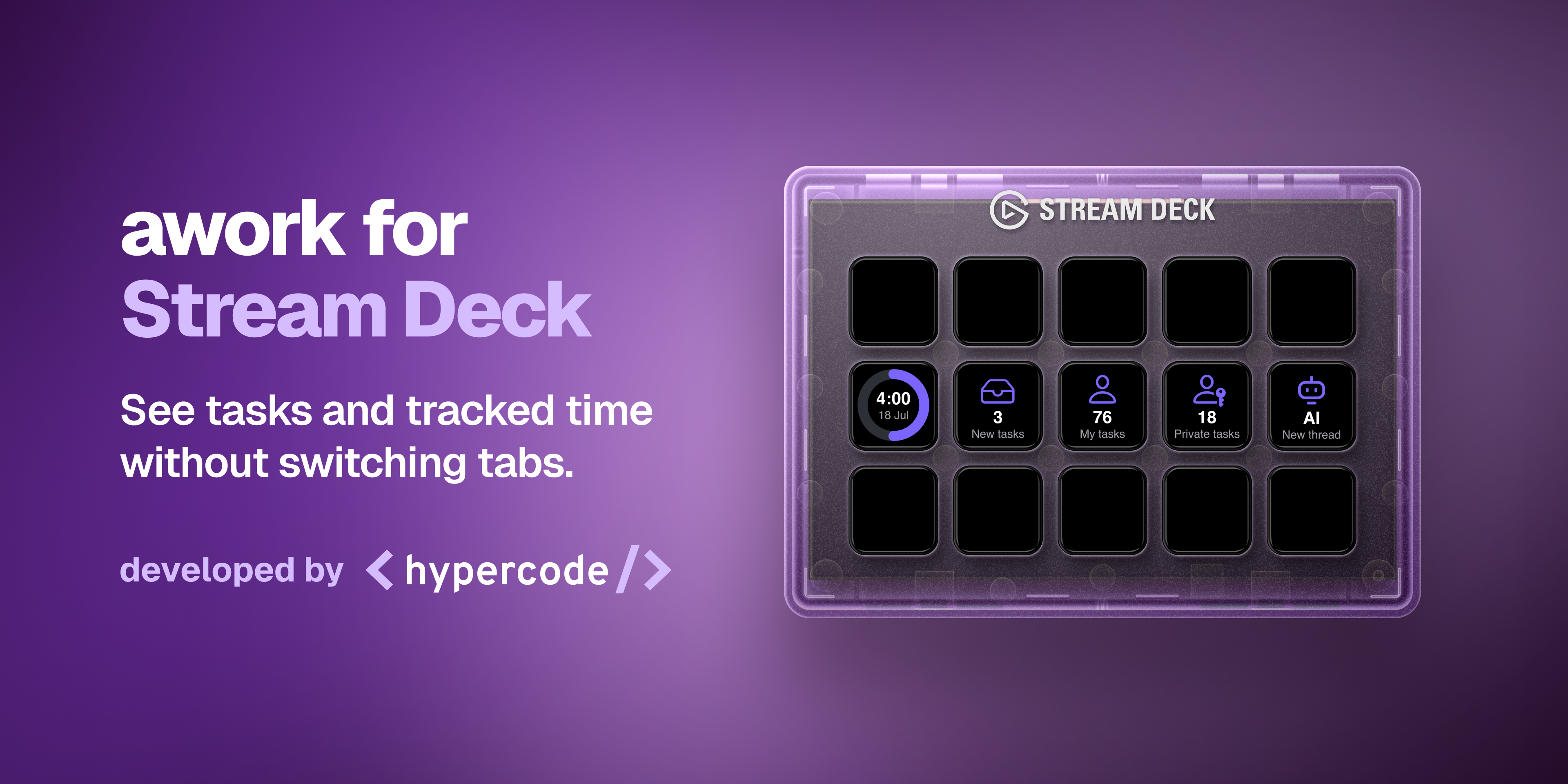
awork brings projects, tasks and time tracking together in one place. With awork for Stream Deck, your most important information comes even closer – straight to your desk. The free plug-in brings tasks, tracked time and AI prompts to the display buttons on the popular Stream Deck control pad.
The idea is simple: instead of searching through browser tabs, you can take a quick glance to the side. And when you need more detail, a button press takes you straight to the right place in awork. Here’s an overview of the plug-in’s actions and how they can support your working day.
A dedicated button for awork AI
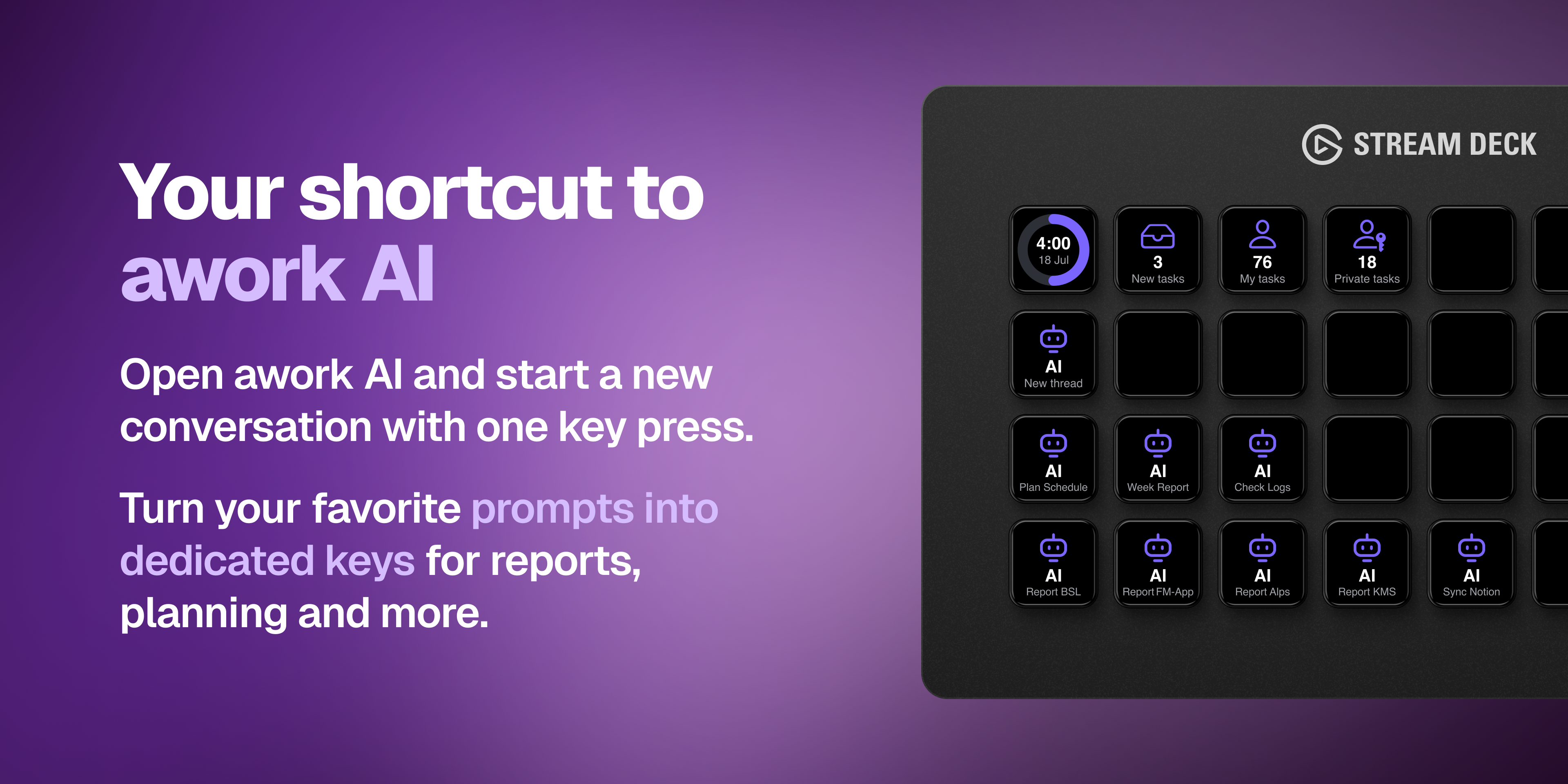
The Open awork AI action takes you to the AI view in your workspace. You can also save a prompt for each button and give it a custom title.
For example, a button called “Daily planning” could prepare this request:
Help me prioritise my open tasks for today.
Pressing the button opens awork AI in your browser with the prompt already filled in. Review it, add anything you need and send it. If you haven’t saved a prompt, the AI view opens a new conversation.
For recurring requests, you can set up several buttons with their own prompts and titles. Your tried-and-tested AI tasks are always just a button press away.
New and open tasks at a glance
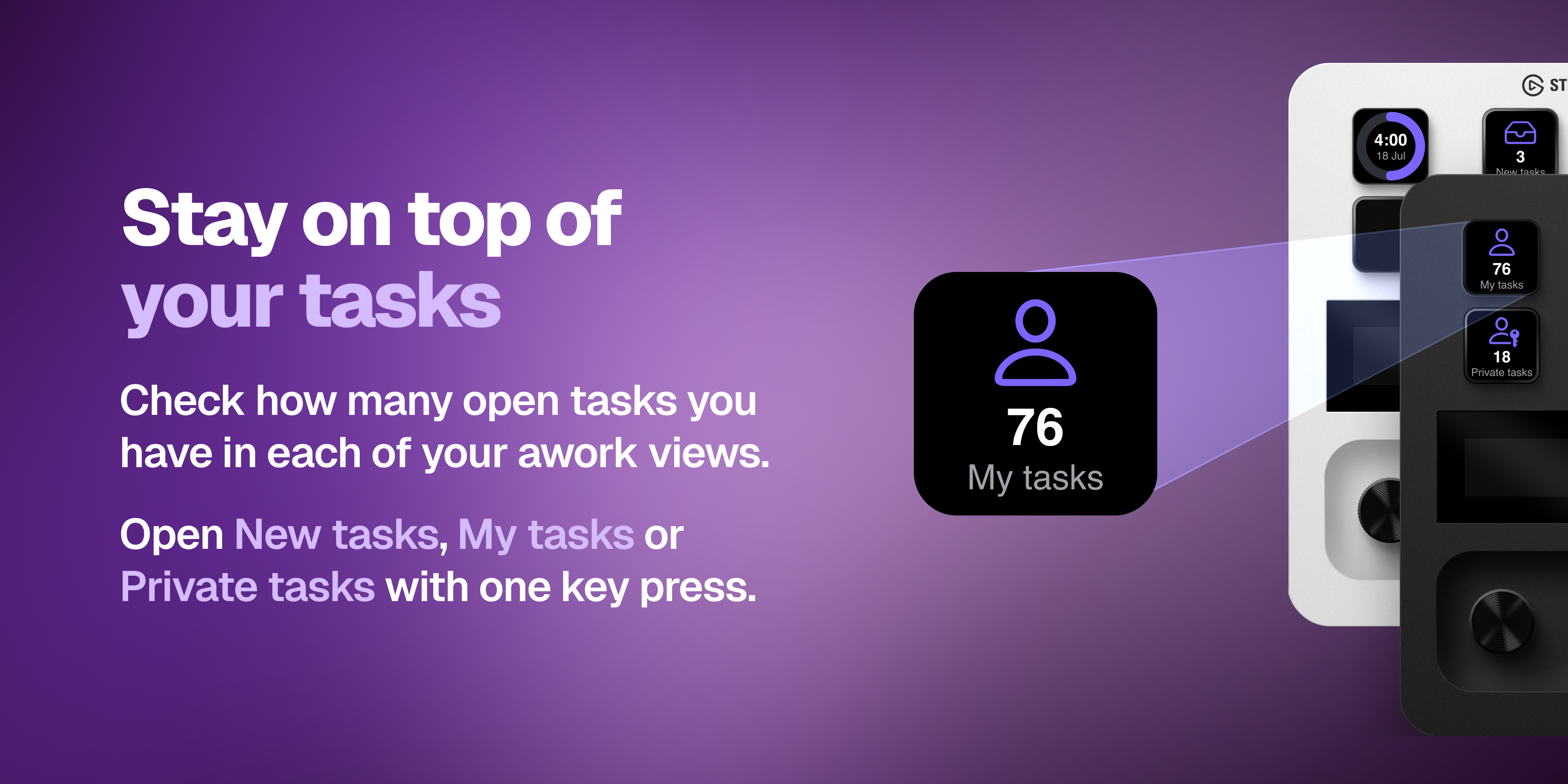
How many tasks are waiting for me right now? With Task Count, the number appears directly on a Stream Deck button. You can choose from three personal task views:
- New Tasks: newly assigned tasks
- My Tasks: your own tasks
- Private Tasks: private tasks
Choose one view or give each its own button. The displays refresh regularly, and you can set the refresh interval for each button.
Pressing a button opens the selected task view in awork. You can see straight away what’s new each morning and decide where to start.
Keep an eye on your time tracking
Between client calls, concept development and reviews, you’ve got plenty done. But have you logged the time for it?
Tracked Time Today shows how many hours you’ve already logged in awork today. A progress ring compares that total with your configured daily working hours.
If you’ve been working for several hours but only a few time entries are showing, it’s worth a quick check. Press the button to open your daily view in awork. You can add any missing entries while the work is still fresh in your mind.
Setup and download
The plug-in runs on macOS and Windows and is available for free in the Elgato Marketplace.
There are three steps to setting it up:
- Create an API client in awork. You may need admin permissions for this.
- Connect the plug-in and sign in with your own awork account.
- Drag the actions onto the buttons and configure your task views, refresh intervals, daily working hours and optional AI prompts.
You’ll find all the details in the setup guide.
FAQs
How much does awork for Stream Deck cost?
The Stream Deck plug-in is available for free in the Elgato Marketplace. You’ll need an awork account and a Stream Deck.
Does everyone on the team need a Stream Deck?
No. The plug-in is an addition to your individual desk setup. Each person connects their own awork account and sees only their own tasks and tracked time. If you don’t use a Stream Deck, you can carry on working in awork as usual.
What permissions do I need to set it up?
The connection requires an API client in awork. Depending on your workspace settings, someone with admin permissions may need to create it. After that, each person can set up the plug-in themselves using their own account.
Does the plug-in track my working time automatically?
No. It shows the time you’ve already logged in awork and opens your daily view at the press of a button. It doesn’t start a timer or create time entries. Time tracking itself stays entirely in awork.
How up to date are the numbers on the display?
The buttons refresh automatically at regular intervals, with a default of five minutes for each button. You can adjust the interval individually – for example, refreshing new tasks more frequently and today’s tracked time less often.
Can I set up several AI buttons with different prompts?
Yes. Each button using the “Open awork AI” action can have its own title and prompt. You could set up one for daily planning, another for weekly reviews and another for client status updates.
awork for Stream Deck was developed by Hypercode, a digital product studio based in Cologne that builds apps, websites and custom software – and uses awork to coordinate it all.
Useful links