A new task comes up in the middle of a design review. Someone asks for the project link in the team chat. And that half-hour discussion still needs to go into your time tracking. Do you really need to find the right tab first?
awork brings projects, tasks and time tracking together in one place.
With awork for Raycast, you can handle many of these everyday actions directly from your keyboard. The free extension connects awork with Raycast, the extensible launcher for macOS and Windows. Open it with a keyboard shortcut, type a command and go straight to the function you need.
That means you can find tasks, capture to-dos and log time while working in Figma, your code editor or your email app. awork AI is directly accessible too.
Open awork AI directly
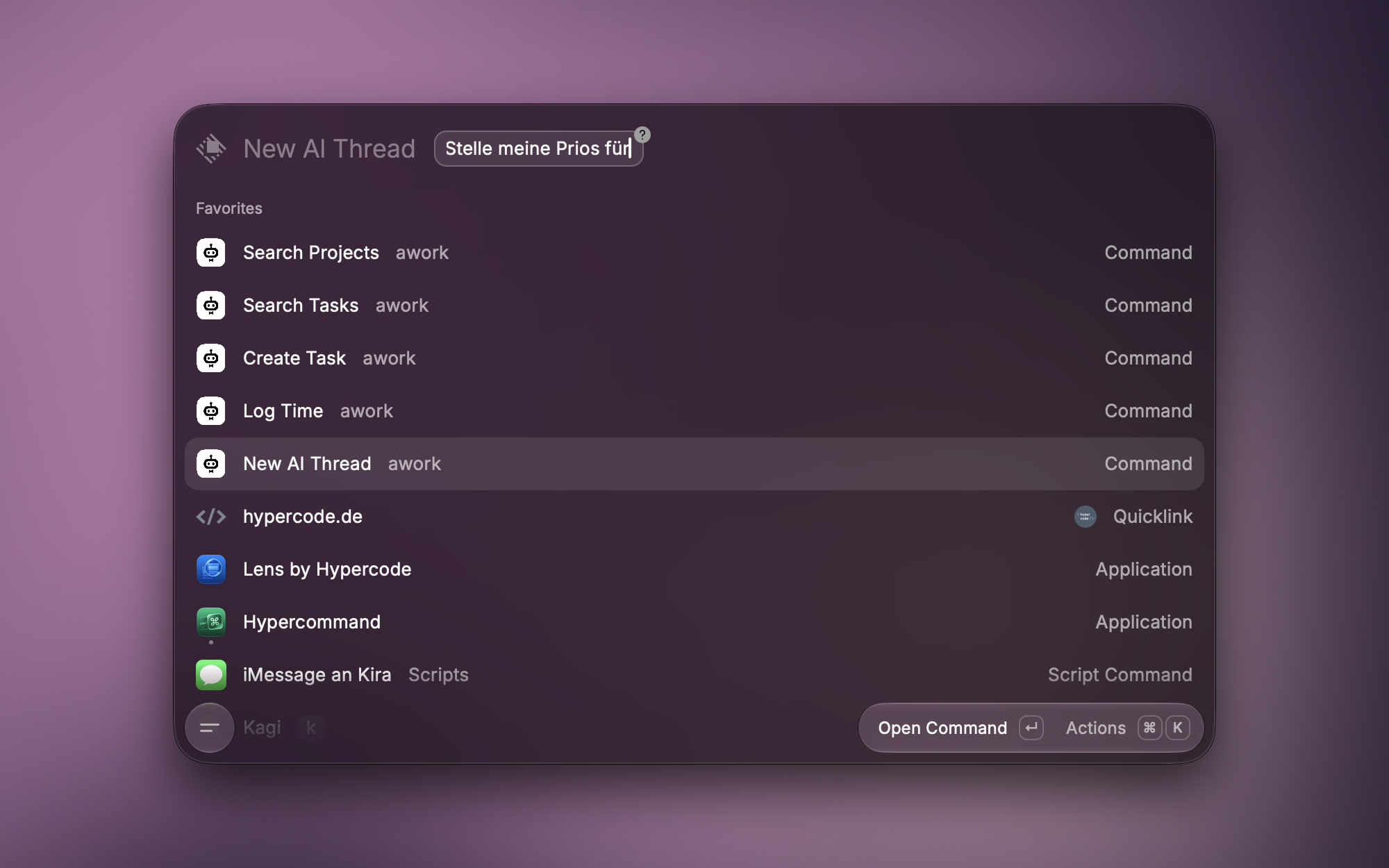
The New AI Thread command opens awork AI in your workspace in the browser. You can optionally enter a prompt in Raycast first, such as:
Help me prioritise my open tasks for this week.
Your request is then pre-filled in awork AI. You can review it, add to it and send it yourself. Without a prompt, the AI view opens ready for a new conversation. Getting started with awork AI is just one command away too.
Find projects and tasks quickly
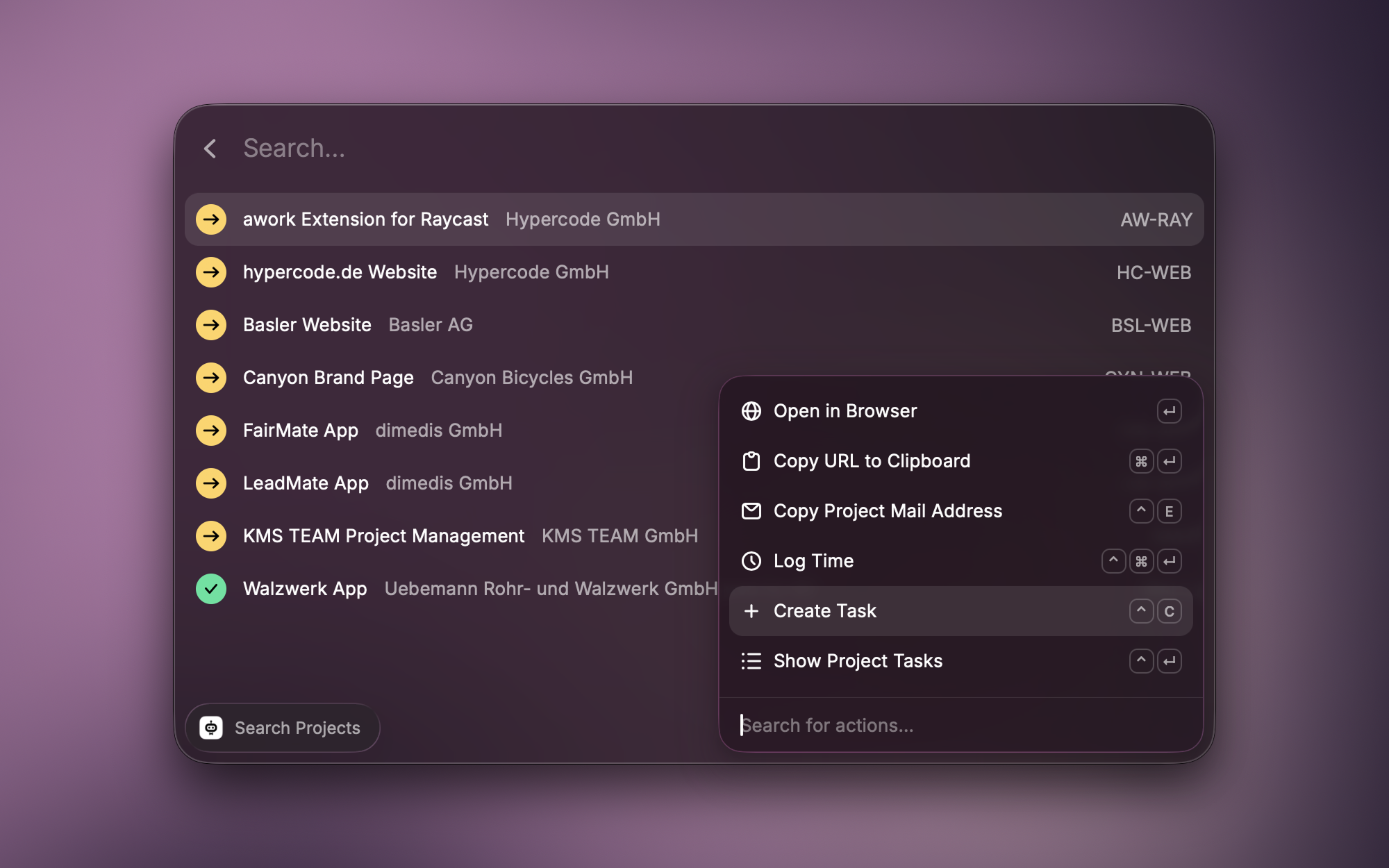
Two commands take you to the right item:
- Search Projects: search for projects by name, project key or ID
- Search Tasks: search for tasks by name, project name, task key or ID, and narrow the search to a project if needed
Project and task keys are included in the search if you have enabled them in awork. Once you have found a project, you can view its tasks directly.
Press Enter to open the item in awork. Use the actions menu to copy its link — or the project email address for a project, and the task ID or key for a task. The right reference is ready to drop into your team chat, brief or next email.
Create and edit tasks directly
Has the review turned into a concrete to-do? Use Create Task to create it directly in Raycast. There are three options:
- Project tasks: assign the task to a project and, if needed, select a task list and assignees
- Private tasks: create tasks for yourself without a project
- Subtasks: create them from an existing parent task
If you start creating a task from the project search, the project is already selected. Alongside the title and description, you can set the status, type of work, start and due dates, planned effort and priority.
From the task search, use Edit Task to open an existing task in a pre-filled form. You can also do this with Ctrl+E on macOS and Windows. Update the details you need and save them; if you wish, the task then opens in your browser. A new assignee or a rescheduled deadline is just a few keystrokes away.
Log time while the work is still fresh in your mind
After a client call or a focused work session, open Log Time. Select the project or task, date, duration and type of work, then add a note. You can also specify a start time and whether the time is billable.
If you open time tracking from a project or task you have found, the assignment is already prepared. Once you save, the time entry appears in awork. That half-hour review is logged before you start your next task.
Use awork through Raycast AI
With @awork in Raycast AI, you can search for projects and tasks, log time, and create and edit tasks — using natural language. For example:
@awork Create a task called “Review homepage” in the “Website relaunch” project, due on Friday.
Raycast AI uses the extension’s functions to identify suitable projects, statuses, task lists and assignees. Before a task is created or changed, you see the proposed details for confirmation.
Setup and download
The extension runs on macOS and Windows and is available free of charge in the Raycast Store.
Setup takes three steps:
- Create an API client in awork. You may need admin permissions for this.
- Install the extension in Raycast and enter the Client ID and Client Secret from awork.
- Sign in with your awork account and run the commands you need.
You can find all the details and keyboard shortcuts for both operating systems on our project page.
FAQs
How much does awork for Raycast cost?
The extension is free. You need Raycast and an awork account. The optional AI features are subject to the respective offerings from Raycast and awork.
What permissions do I need for setup?
You may need admin permissions to create the API client. After that, each person signs in with their own awork account. The extension only provides access to projects that person is already authorised to access.
Do I need AI to use the extension?
No. Search, task management and time tracking work through the standard commands.
Can I also find completed tasks and closed projects?
Yes. In the extension settings, you can enable “Show done tasks” and “Show closed projects”. These items are hidden by default.
Can I run commands using my own keyboard shortcuts?
Yes. In Raycast, you can assign your own hotkeys or short aliases to commands. For example, you can open time tracking directly with a key combination of your choice.
awork for Raycast was developed by Hypercode, a digital product studio based in Cologne that builds apps, websites and bespoke software — and uses awork to coordinate it all.
Relevant links